Kenotex turns one messy line of text into todos, events and reminders — written in the Ideas canvas and parsed by AI into your day. This guide covers everything from your first parse to the lunar almanac.Kenotex 把一句随手写下的话,拆成待办、日程和提醒 —— 在「想法」画布里写,AI 解析后归入你的一天。这份知识库从第一次解析,一路讲到农历宜忌。
What Kenotex doesKenotex 是什么
Kenotex is a natural-language planner for iPhone and Mac. You write the way you think in the Ideas canvas; AI reads each block and files it as a todo, a calendar event, or a check-in habit — no forms, no fiddly date pickers.Kenotex 是一款面向 iPhone 与 Mac 的自然语言日程助手。你在「想法」画布里怎么想就怎么写,AI 读懂后把每个块归类为待办、日程或打卡习惯 —— 不用填表单,不用拨日期选择器。
Who it's for适合谁用
New users — start with the 5-minute quick start, then read the interface overview.新用户 —— 从「5 分钟快速上手」开始,再看界面总览。
Returning users — jump straight to any feature from the left nav.老用户 —— 直接用左侧导航跳到任意功能页查阅。
From a blank canvas to todos, events and habits in your day. Do these five things once and you'll have the whole loop.从一块空白画布到落进你一天里的待办、日程与打卡习惯。把下面五步走一遍,核心闭环就跑通了。
The five steps五步走
1
Open Ideas and jot anything into blocks — mixed languages, lists, pasted text. No need to sort it first.打开「想法」,把任何东西写进块里 —— 中英混排、清单、粘贴都行,不必先分类。
2
Tap the Parse pill (or ⌘↵ on Mac). AI reads each block and labels it as a todo, event or habit.点「解析」胶囊(Mac 上按 ⌘↵)。AI 读取每个块,标注为待办、日程或打卡习惯。
3
Review the preview and fix any wrong type before you send.发送前检查解析结果,类型不对就改。
4
Send: todos go to Todos, events go to the Calendar, habits go to Check-in.发送:待办进待办、日程进日历、打卡习惯进打卡页。
5
Check your day in the Calendar and tick off todos as you go.到日历看你的一天,边做边勾掉待办。
On Mac, press ⌘I to open Ideas, or ⌘⌃⇧I to pop the mini window from any app.在 Mac 上按 ⌘I 打开「想法」,或按 ⌘⌃⇧I 在任意应用里弹出迷你窗。
Kenotex uses a sidebar with four sections. Ideas isn't a section — it's an overlay you can summon from anywhere.Kenotex 用侧栏导航,共四个区块。「想法」不是区块,而是随处可唤起的浮层。
The four sidebar sections侧栏的四个区块
Todos — tasks in a three-stage flow: Focus, Shelves (the category grid), and category detail.待办 —— 三段式:专注、书架(分类网格)、分类详情。
Calendar — month and week views, with lunar dates and almanac.日历 —— 月、周视图,带农历与宜忌。
Agenda — a running list of what's coming up.日程 —— 接下来事项的连续列表。
Check-in — track habits with flexible daily, weekly or monthly goals.打卡 —— 按天、周或月灵活设置习惯目标,记录坚持。
Ideas, the capture overlay想法 —— 速记浮层
Ideas opens as an overlay on Mac (button or ⌘I) and as a sheet on iPhone (the round button at the bottom-right). In Settings → Ideas, either platform can use the focused card flow or switch to a fullscreen writing surface.「想法」在 Mac 上以浮层打开(按钮或 ⌘I),在 iPhone 上是右下角圆按钮弹出的面板。两个平台都可以在「设置 → 想法」中使用专注的卡片流,或切换到全屏写作界面。
Ideas appears as an overlay on Mac and as a sheet on iPhone, so capture stays available without becoming a permanent sidebar section.「想法」在 Mac 上是浮层,在 iPhone 上是弹出面板,因此随时可记录,但不会变成侧栏里的常驻区块。
Themes & appearance主题与外观
Kenotex ships with 31 themes (18 dark + 13 light) and a Follow System option. Pick whatever keeps you in the app longest — your data looks the same underneath.Kenotex 内置 31 款主题(18 深色 + 13 浅色),并可跟随系统。挑一个让你愿意多停留的就好 —— 底层数据完全一样。
Pro users can choose the new Graphite family in Appearance. Graphite Light uses a warm-gray canvas with graphite and ember accents; Graphite Dark pairs a deep graphite background with porcelain text and ember highlights. The Focus page also receives Graphite-specific cards, controls and event-spine styling.Pro 用户可以在「外观」中选择新的「石墨」主题家族。浅色石墨采用暖灰画布、石墨文字与炭橙点缀;深色石墨则使用深石墨背景、白瓷文字与炭橙强调。Focus 页面还会启用石墨主题专属的卡片、控件和事件脊样式。
Video: open Appearance on iPhone and preview the Pro-only Graphite Light and Graphite Dark themes.视频:在 iPhone 的「外观」中预览 Pro 专属的石墨浅色与石墨深色主题。
Drop any thought in, parse in one tap把任何想法丢进来,一键解析
On iPhone and Mac, Ideas offers a card mode for capturing one thought at a time and a fullscreen mode for longer writing. AI can turn what you write into todos, calendar events or check-in habits, then keep each result with the thought that created it.在 iPhone 和 Mac 上,「想法」既有一次记录一条想法的卡片模式,也有适合长篇输入的全屏模式。AI 可以把内容转成待办、日程或打卡习惯,并让结果和原来的想法保持对应。
Card mode: one thought, one card卡片模式:一个想法,一张卡片
With fullscreen Ideas turned off, the redesigned iPhone interface opens as a card flow. The compose card holds the thought you are working on; earlier ideas stay in a searchable card deck so you can browse, edit or parse them again without mixing drafts together.关闭「全屏想法」后,iPhone 会使用重新设计的卡片流界面。创作卡片只放当前正在记录的想法;以前的想法会保留在可搜索、可浏览的卡片堆中,随时可以继续修改或重新解析,不同草稿不会挤在一起。
Parse a card and Kenotex can create a todo, a calendar event or a check-in habit from its wording. Todo and event results can be corrected from the type badge; routines such as repeated daily doses are recognized as habits and kept separate from that manual todo/event switch.解析卡片后,Kenotex 会根据文字生成待办、日程或打卡习惯。待办和日程判断不准确时,可以从类型徽章中互相修正;像每天多次吃药这样的重复日常会被识别为习惯,不参与待办 / 日程的手动切换。
Video: capture one thought per card, browse the redesigned card flow, then parse ideas into todos, events or check-in habits.视频:用一张卡片记录一个想法,浏览新版卡片流,再把想法解析成待办、日程或打卡习惯。
When a thought could be a todo or an event分不清是待办还是日程时
If you're not sure whether "tomorrow at 3pm" belongs in Todos or Calendar, write it as a normal sentence in Ideas. Kenotex reads the timing and intent, then creates a card as a todo or an event so you do not have to choose a form first.如果你不确定「明天下午 3 点做一件事」应该放进待办还是日历,直接把它像普通话一样写进「想法」。Kenotex 会读取时间和意图,再生成待办或日程卡片,不用先纠结该填哪个表单。
The card is still editable: todo/event type can be corrected from the type badge, and details such as reminders, category or time can be adjusted from the created result.卡片仍然可以继续调整:待办 / 日程类型可以从类型徽章里修正,提醒、分类、时间等细节也可以在生成结果上继续改。
Video: write one natural-language thought and let Ideas classify it into the right card type.视频:写下一条自然语言想法,让「想法」自动判断并生成对应类型的卡片。
Fullscreen Ideas mode on MacMac 全屏想法模式
Turn on Settings → Ideas → Fullscreen mode to replace the Mac card overlay with a continuous writing surface. Drafts stay in the slim rail on the left, while parsed results appear as lightweight annotations beside the paragraph that created them.打开「设置 → 想法 → 全屏模式」,Mac 上的卡片浮层就会切换成连续写作界面。草稿保留在左侧窄栏中,解析结果则以轻量批注的方式显示在对应段落旁边。
Write without choosing a form first. The bottom toolbar supports Markdown headings, checklists, bullet lists, bold, italic and links, with live syntax styling while you type. Separate thoughts with blank lines and each paragraph can be parsed on its own.不必先选表单,想到什么就写什么。底部工具栏支持 Markdown 标题、复选清单、项目符号、加粗、斜体与链接,输入时会实时显示语法样式。用空行分开想法后,每个段落都可以单独解析。
Auto-parse is unavailable in fullscreen mode. Select the paragraph you want and trigger Parse manually. The fullscreen preference applies only to the current device.全屏模式不使用自动解析。选中需要处理的段落后,手动触发「解析」即可。全屏模式开关只对当前设备生效。
Video: enable fullscreen Ideas on Mac, write freely with Markdown formatting, and parse one paragraph without leaving the document.视频:在 Mac 上开启全屏想法,使用 Markdown 自由书写,并在不离开文档的情况下单独解析一段内容。
Fullscreen Ideas mode on iPhoneiPhone 全屏想法模式
On iPhone, Ideas can also open as a fullscreen writing surface. It feels closer to a draft page: write freely, separate thoughts with paragraphs, then parse the paragraph that is currently in focus.在 iPhone 上,「想法」也可以切换为全屏写作界面。它更像一张草稿纸:你可以在页面上自由输入,用段落把不同想法分开,再对当前聚焦的段落进行解析。
Each paragraph still maps back to Ideas blocks, so parsed results stay attached to the text that produced them. This makes longer planning, meeting notes, and mixed todo/event drafts easier to review before sending.每个段落仍会对应回「想法」里的块,解析结果会贴在生成它的文字旁边。写较长的计划、会议记录,或混合待办和日程的草稿时,发送前更容易逐段检查。
The iPhone fullscreen editor also styles Markdown as you type. Enter ++underlined text++ for underline and ==highlighted text== for highlight, so decisions, keywords and follow-ups stand out before you parse the paragraph.iPhone 全屏编辑器也会在输入时实时显示 Markdown 样式。直接输入 ++下划线内容++ 可添加下划线,输入 ==高亮内容== 可高亮文字,适合在解析段落前标出决定、关键词和后续事项。
Current input method当前输入方式Type these markers directly in the editor. The underline and highlight toolbar icons are not action buttons yet.目前请直接在编辑器中输入这些标记;工具栏里的下划线和高亮图标暂时还不是可操作按钮。
Video: write in fullscreen Ideas mode, then parse paragraphs into structured todos, events or habits.视频:在全屏「想法」模式里像写草稿一样输入内容,再按段落解析成待办、日程或打卡习惯。Video: type Markdown markers in fullscreen Ideas to highlight or underline text while writing on iPhone.视频:在 iPhone 全屏「想法」中直接输入 Markdown 标记,为文字添加高亮或下划线。
Spark: break down complex tasksSpark:拆解复杂任务
Task breakdown is currently in Beta testing. Feedback is welcome as the feature continues to improve.任务拆解目前处于 Beta 测试阶段,功能仍在持续完善,欢迎体验并反馈。
Spark task breakdown is a Pro feature available on iPhone and Mac. Write a complex task in fullscreen Ideas, then select Decompose. AI organizes the idea into tasks and subtasks; larger projects can include multiple stages.Spark 任务拆解是 Pro 功能,支持 iPhone 和 Mac。在全屏「想法」页写下复杂任务,再点击「拆解」。AI 会将想法整理成任务和子任务,较大的项目也可以按阶段展开。
Review the result as a mind map, list or Gantt chart, then choose Accept & write to add it to Todos. You can also decompose again. A simple, single-step task may be offered as a todo without further breakdown.先通过脑图、清单或甘特图检查结果,再选择「接受并写入」加入待办。结果不合适时可以重新拆解;简单的单步任务则可能直接建议写入待办,无需继续拆分。
iPhone demoiPhone 演示
Video: break down an idea on iPhone, review the tasks and subtasks, then accept and write the result.视频:在 iPhone 上拆解想法,检查任务和子任务,再接受并写入。
Mac demoMac 演示
Video: use Spark in fullscreen Ideas on Mac to break down a complex task and review the result before writing it to Todos.视频:在 Mac 全屏「想法」中使用 Spark 拆解复杂任务,检查结果后再写入待办。
Break down an existing todo拆解已有待办
When a todo feels too complex to start, use Spark directly from the Focus page: swipe right on the todo on iPhone and tap Decompose, or right-click it on Mac and choose Decompose. Review the proposed steps before accepting the result.遇到复杂、暂时不知道如何着手的待办,可以直接在「专注」页使用 Spark:iPhone 上右滑待办并点击「拆解」;Mac 上右键待办并选择「拆解」。先检查 AI 建议的步骤,再接受结果。
This entry is available for incomplete, non-recurring todos, not habits or completed tasks. Like task breakdown in fullscreen Ideas, it requires Pro and is currently in Beta testing.这个入口适用于尚未完成的非循环待办,不适用于习惯、循环任务或已完成任务。与全屏「想法」中的任务拆解一样,此功能需要 Pro,目前处于 Beta 测试阶段。
Video: swipe right on an existing todo on iPhone and select Decompose to break it into actionable steps.视频:在 iPhone 上右滑已有待办,点击「拆解」,将复杂任务拆成可执行的步骤。
Three steps三步走
1
Write freely into blocks. Mixed languages, lists and paste all work; on Mac press ⌘I to summon it. No need to decide the type first.在块画布里随手写。支持多语言混排、清单、粘贴;Mac 上按 ⌘I 唤起,无需先想清楚分类。
2
Tap the Parse pill (Mac: ⌘↵ on the focused block). AI labels each block's type and shows a preview. With auto-parse turned on in Settings › AI Service, a block parses itself about a second after you stop typing.点「解析」胶囊(Mac 上对聚焦的块按 ⌘↵)。AI 标注每个块的类型并给出预览。在「设置 › AI 服务」开启自动解析后,停笔约一秒即自动解析。
3
Send: todos enter Todos, events enter the Calendar, habits enter Check-in.发送:待办进待办、日程进日历、打卡习惯进打卡页。
Video: one Ideas block gets parsed into calendar events, dated todos and a recurring todo before sending.视频:一个「想法」块被解析成日程、带日期的待办和循环待办,发送前可以逐项确认。
Revise, re-parse & repeat随时修改,重新解析
Ideas blocks stay editable. If the wording changes, update the block and parse it again; Kenotex refreshes the created items instead of forcing you to start over.「想法」里的块可以一直编辑。写法变了,直接改这段文字再重新解析即可;Kenotex 会刷新对应条目,不用重新从表单开始。
This is especially useful for recurring todos. Natural language like "every day", "every 3 days", "every workday", weekly, monthly or yearly rules can become repeatable tasks with the right deadline anchor.这对循环待办尤其有用。像「每天」「每 3 天」「每个工作日」,以及每周、每月、每年的规则,都可以从自然语言变成带锚点的循环任务。
Video: edit an Ideas block, re-parse it, and create recurring todos such as daily, every few days, or workday tasks.视频:修改「想法」块后重新解析,生成每天、每隔几天、或每个工作日的循环待办。
How parsing works解析的工作原理
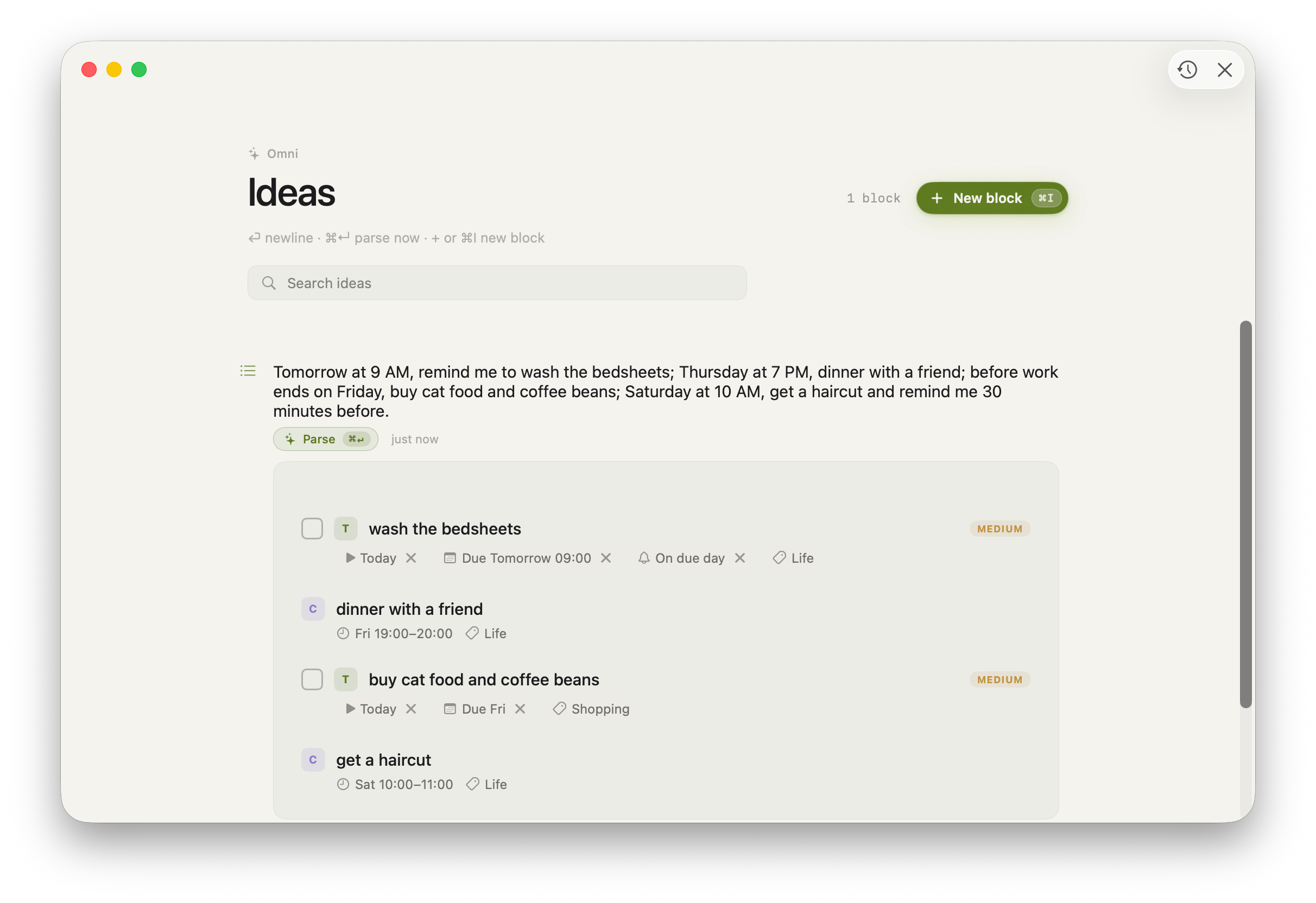
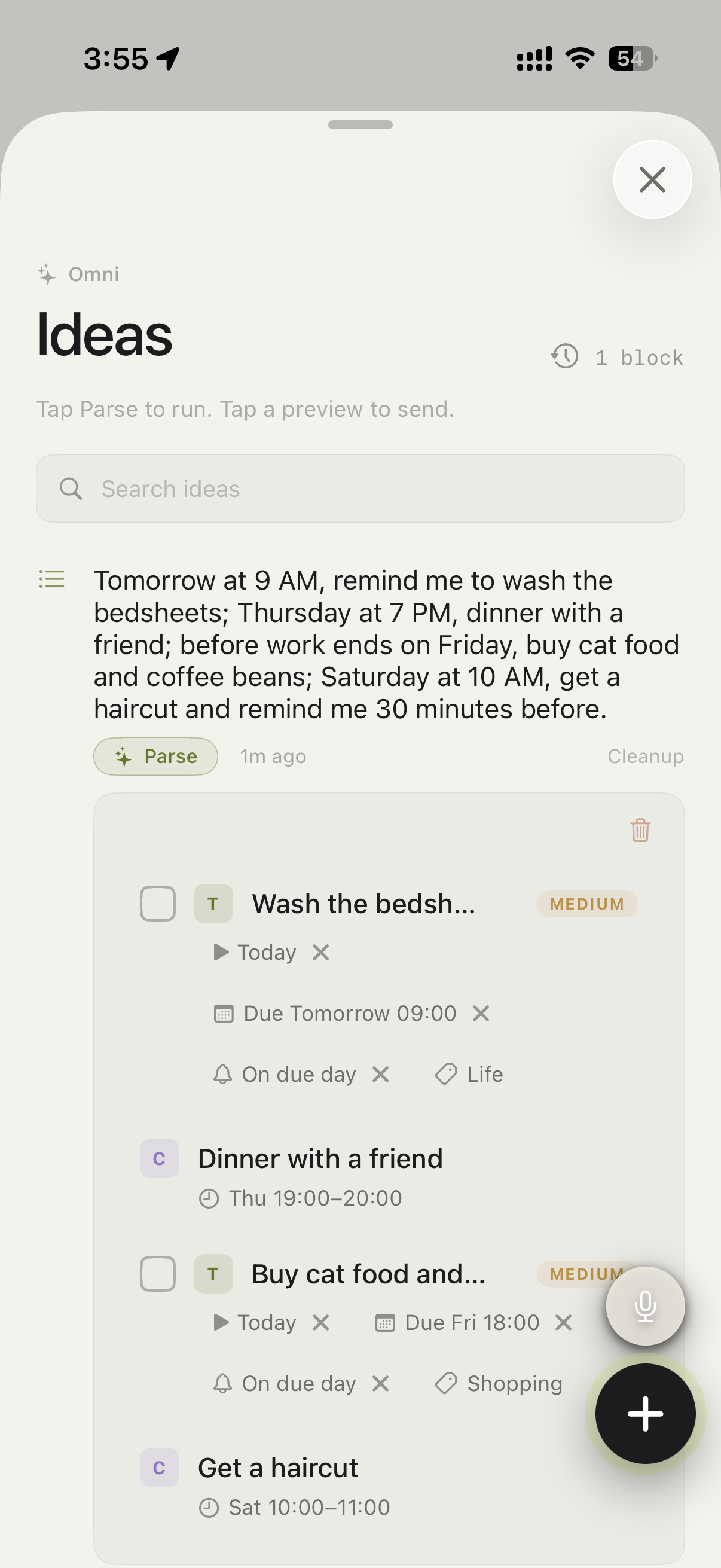
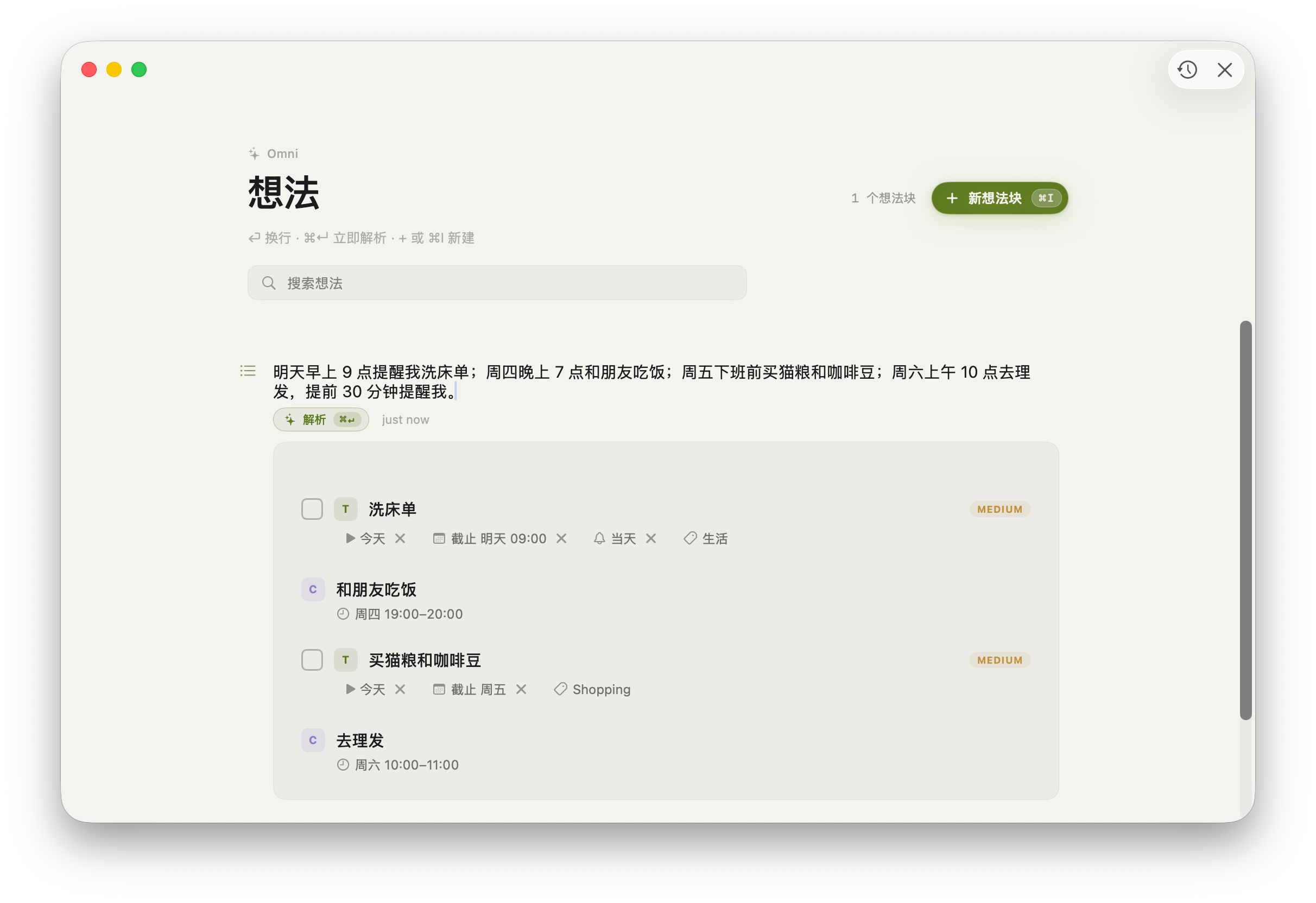
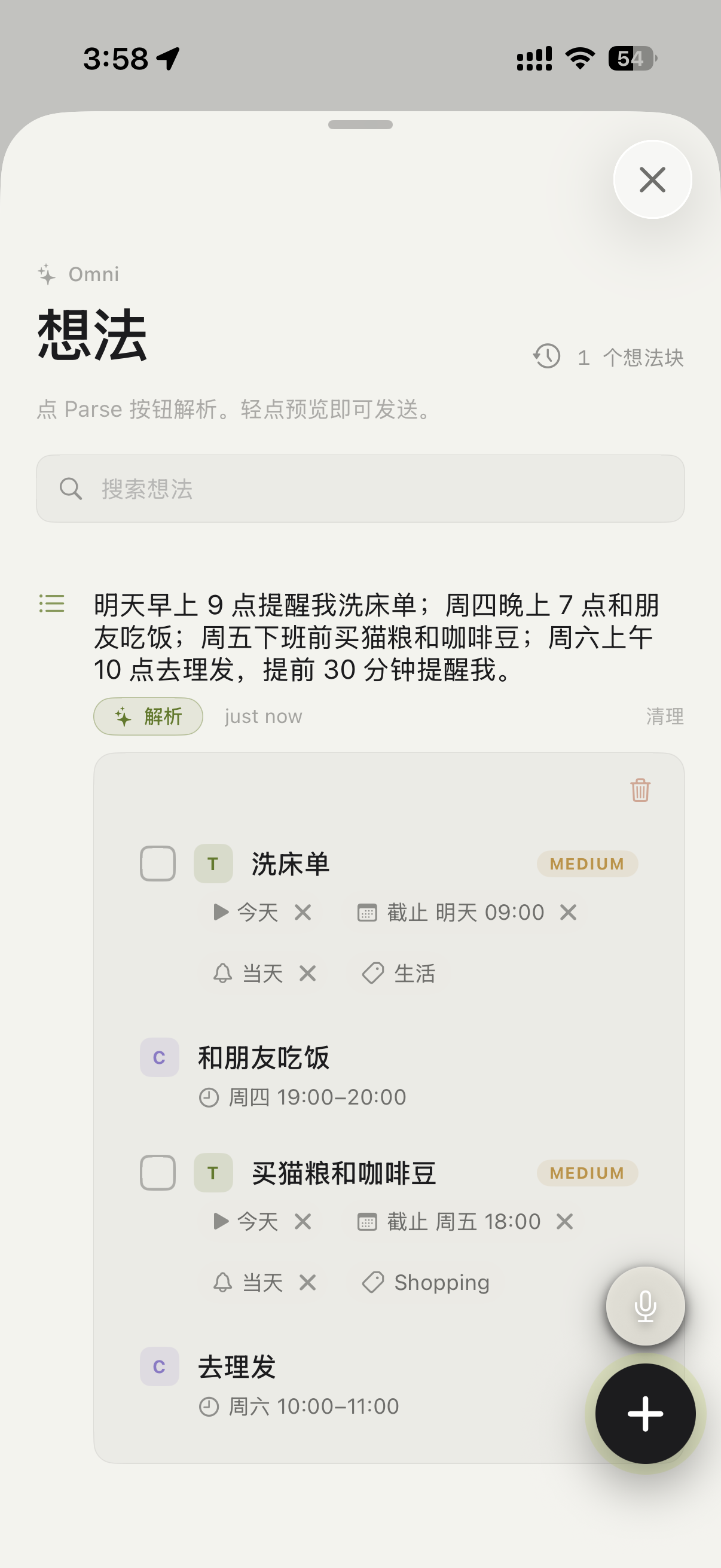
AI reads relative dates ("tomorrow 9am", "before Friday"), recognizes lists, and infers whether each block is actionable — one block can fan out into several items. You stay in control: every type is editable before you send.AI 能读懂相对日期(「明天早上9点」「周五下班前」),识别清单,并判断每个块是否可执行 —— 一个块可拆成多个条目。主动权在你手上:发送前每种类型都可手动修改。
In the demo above, the same block contains a copy-review meeting, a gym class, TestFlight feedback work, rent payment and a product-improvement todo. Parse keeps them together as one draft, then separates them by destination.上方演示里,同一个块同时包含文案会议、健身课、TestFlight 反馈整理、交房租和产品改进待办。解析会先保留在同一份草稿里,再按去向拆成不同条目。
Current AI model and resilient routing当前 AI 模型与冗余解析
Kenotex routes parsing to third-party large language models chosen after evaluating parsing quality and response time against Kenotex's own standard; the specific models may change as better options appear.Kenotex 将解析交给经解析质量与响应时间评估、达到 Kenotex 自身标准的第三方大语言模型;具体模型可能随更优选择出现而更换。
Most requests start with the primary model. If it produces no usable content within one second, or fails earlier, the peer joins the race while the primary keeps running. Kenotex returns the first complete result that can be decoded and passes output checks; an incomplete or malformed fast reply cannot win.大多数请求会先由主模型处理。如果 1 秒内没有产生有效内容,或主模型提前失败,备用模型会立即加入竞赛,同时主模型继续运行。Kenotex 只返回最先完成、能够正确解析且通过输出校验的结果;不完整或格式错误的快速回复不会胜出。
As of August 1, 2026, production monitoring reports zero all-provider parse failures. This is a current operating result, not a permanent zero-failure guarantee; review the editable preview before sending.截至 2026 年 8 月 1 日,生产环境监控中的全链路解析失败数为 0。这是当前运行结果,并非永久零失败承诺;发送前仍建议检查可编辑的解析预览。
The Todos section flows through three stages — Focus, Shelves and category detail — so today's work, your category grid, and a single list never blur together.待办分三段流转 —— 专注、书架、分类详情 —— 让今天要做的、你的分类网格、和单个清单互不干扰。
Focus / Shelves / category detail专注 / 书架 / 分类详情
Focus — the default entry: overdue plus today's tasks. Toggle between Focus and Recent (completed in the last few days).专注 —— 默认入口:过期加今日的任务。可在「专注」与「最近」(近几天完成)间切换。
Shelves — the category grid. Each card is one category, showing its name and open count; items without a category land in Uncategorized.书架 —— 分类网格。每张卡是一个分类,显示名称与未完成数;没有分类的条目归入「未分类」。
Category detail — inside one category, four sub-views: Active, Upcoming (starts in the future), Someday (no dates yet), and Completed.分类详情 —— 单个分类下四个子视图:待办、未来(起始日在将来)、待定(尚无日期)、已完成。
Screenshot · todos three stages界面截图 · 待办三段式
Break a todo into subtasks把待办拆成子任务
On iPhone and Mac, turn a larger todo into smaller steps without scattering them across the list. Choose Create subtask from the todo action, then add and edit each step directly inside the parent task.在 iPhone 和 Mac 上,可以把较大的待办拆成更容易执行的小步骤,不用让它们散落在整个清单里。从待办操作中选择「创建子任务」,即可在主任务内直接添加和修改每个步骤。
The completed count and progress bar update as each subtask is checked. Completing the final subtask automatically completes the parent todo after the finish animation. If you complete the parent first, Kenotex asks for confirmation before marking the remaining subtasks complete as well.每勾选一个子任务,完成数量与进度条都会同步更新。最后一个子任务完成后,主任务会在完成动画结束后自动完成。如果先手动完成主任务,Kenotex 会在确认后把剩余子任务一并标记为完成。
Video: create subtasks inside an iPhone Focus todo, then watch the count and progress bar update.视频:在 iPhone Focus 待办中创建子任务,并查看完成数量与进度条随勾选更新。Video: plan a larger todo as editable subtasks in Kenotex for macOS.视频:在 Kenotex macOS 端把较大的待办拆成可编辑的子任务并逐步完成。
iOS timeline viewiOS 时间线视图
On iPhone, the Focus timeline turns todos and events into a day-by-day track centered on today. Drag it to peek into upcoming work or past overdue items, then release and it springs back to today.在 iPhone 上,Focus 时间线会把待办和日程按天排成轨道,默认停在今天。你可以拖拽窥视接下来要做的事,也可以回看已经过了截止日期的内容;松手后会像橡皮筋一样弹回今天。
The refreshed timeline makes the track easier to scan, with clearer spacing and a more visual rhythm across days. Pro users can also switch to the Serpentine style, where date nodes and items flow along a curved path while keeping the same today-centered peek behavior on iPhone.新版时间线重新调整了视觉层次,每天的事项更容易扫读。Pro 用户还可以切换到「蛇形路径」样式,让日期节点、待办和日程沿着弯曲路径展开;在 iPhone 上仍保留以今天为中心、拖拽窥视后回弹的交互。
It is designed for quick scanning rather than manual scrolling: timed items sort by time, overdue todos stay visually obvious, and recurring preview instances remain read-only until they become real tasks.它更像一个快速浏览视图,不是普通滚动列表:带时间的事项按时间排序,过期待办会保持醒目,循环预览实例在变成真实任务前保持只读。
Video: the refreshed iOS Focus timeline, including the Pro Serpentine style for a more visual day-by-day view.视频:新版 iOS Focus 时间线,包括 Pro 用户可用的「蛇形路径」样式,让每天的安排更直观。
Pull undated todos into today把无截止待办拉进今天
Finished the urgent work but still have room for another task? On the iPhone Todo · Focus page, press and drag the bottom floating button to the left. The Pull into today page groups your unfinished, undated todos by category so you can choose from work that has not been scheduled yet.今天要紧的事情都完成了,但还有余力再做一点?在 iPhone 的「待办 · 专注」页面,按住底部悬浮按钮向左拖,即可打开「拉进今天」。这里会按分类集中展示尚未完成、没有截止日期的待办,方便从还没排期的事情里临时挑选。
Tap Do today beside a todo to give it today's date and place it in Focus immediately. This action also clears any existing start date, so use the regular editor instead when a future start date should be preserved.点击待办右侧的「今天做」,Kenotex 会把截止日期设为今天,让它立即进入专注列表。这个操作也会清除原有起始日期;如果需要保留未来起始日期,请改用常规编辑方式调整。
Video: drag the Focus floating button left, then choose an undated todo to do today.视频:在专注页面向左拖悬浮按钮,再从无截止日期的待办中挑一件今天做。
Landscape Zen mode on iPhoneiPhone 横屏禅模式
On iPhone, rotate Kenotex into landscape to switch from the regular task list into a full-screen Zen mode. It keeps the screen calm: the left side highlights the first three Focus todos, while the right side shows the current or next event.在 iPhone 上把 Kenotex 横过来,会从常规待办列表切换到全屏「禅模式」。界面会保持克制:左侧突出前 3 个 Focus 待办,右侧显示当前或下一个日程。
It is designed for desk or stand use: glance at the few things that matter now, then keep working without scanning the whole list.这个模式适合把手机放在桌面或支架上使用:只看现在最重要的几件事,不用反复扫完整清单。
Video: rotating iPhone into landscape opens Zen mode with Focus todos and the current or next event.视频:将 iPhone 横屏后进入禅模式,集中展示 Focus 待办和当前或下一个日程。
Home Screen widgetsiOS 桌面组件
On iPhone, Kenotex can be added to the Home Screen as widgets, so your next todo, upcoming schedule and month context stay visible without opening the app.在 iPhone 上,Kenotex 可以添加为桌面组件,不用打开 App 也能看到下一条待办、接下来的安排和当月信息。
Focus shows overdue and due-today todos. You can tap the checkbox from the widget to complete a todo, or tap + to capture a new idea quickly.Focus 显示过期与今日待办。可以直接在组件里勾选完成,也可以点 + 快速记录新想法。
Agenda shows the next 24 hours of events and todos, helping you check the day ahead at a glance.Agenda 展示未来 24 小时的日程与待办,抬手就能确认接下来的安排。
Calendar shows a compact month view with today's moments, events and todos beside it.Calendar 提供紧凑月历,旁边汇总今天的时刻、日程和待办。
Video: add Kenotex widgets to the iPhone Home Screen and choose Focus, Agenda or Calendar.视频:把 Kenotex 添加到 iPhone 桌面,选择 Focus、Agenda 或 Calendar 组件。
Start dates, deadlines & reminders起始、截止与提醒
A todo can carry a start date (before it, the task shows as not-started and greyed out), a deadline (used for overdue), and one or more reminders (a local notification N minutes before). Set them in natural language while writing, or tap to adjust later.待办可带起始日(在此之前显示为未开始、置灰)、截止日期(用于判断过期),以及一个或多个提醒(提前 N 分钟的本地通知)。可在书写时用自然语言写好,也可之后点开调整。
Partial completion部分完成
Not every task is simply not done or done. Kenotex lets you mark progress as Started, Mostly done, or Completed, so your todo list can reflect the real state of the work.不是每个任务都只有「没做」或「做完」两种状态。Kenotex 支持把进度标成起步、大半或完成,让待办列表更接近真实推进情况。
Use it when a task has already moved forward but should not disappear from your active list yet: a draft has been started, a chore is halfway done, or a project is almost ready but still needs a final pass.当一件事已经推进,但还不该从待办里消失时就适合用它:草稿已经开写、家务做到一半、项目差最后检查,都可以先记录进度,而不是假装完成。
Video: a todo moves through partial progress states before it is fully completed.视频:一条待办先标记为部分完成,再继续推进到真正完成。
Undo a completed todo完成后快速撤销
If you tick the wrong todo by mistake, Kenotex shows a short undo toast at the bottom of the screen. Tap Undo within 5 seconds to bring the todo back to its previous state.如果手滑勾错待办,Kenotex 会在屏幕底部弹出一个短暂的撤销提示。5 秒内点击「撤销」,就能把这条待办恢复到完成前的状态。
This is designed as a quick safety net for accidental completion. It works from the main Focus flow and category detail lists, and preserves the app's todo/reminder handling behind the scenes.这个设计是给误触准备的即时保险。无论是在专注流里还是分类详情里勾选完成,都可以用同一条底部提示快速回退,背后的待办与提醒状态也会一起恢复。
Video: completing a todo shows the bottom undo toast; tapping Undo before the countdown ends restores the todo.视频:勾选完成后底部出现撤销提示;倒计时结束前点击「撤销」,待办会恢复回来。
A daily-once recurring todo can graduate into a habit — see Check-in. Recurrence options live in Recurring & reminders.「每天 1 次」的循环待办可升级为习惯 —— 见「打卡」。循环规则见「循环与提醒」。
Kenotex is native on macOS too. On the Mac, the Gantt view helps you place tasks on a timeline so planning is visual instead of buried in a long list.Kenotex 也有原生 macOS 端。在 Mac 上,甘特图视图可以把任务放到时间线上,让规划不再只藏在长列表里。
When to use it适合什么时候用
Use the Gantt view when a task's timing matters: project phases, handoff work, weekly planning, or any list where start and deadline relationships are easier to understand visually.当任务的时间安排很重要时,就适合打开甘特图:项目阶段、交接工作、周计划,或者任何需要同时看起始与截止关系的任务列表。
What you can see能看到什么
Task timing — see each task on a horizontal timeline instead of scanning dates one by one.任务时间 —— 任务会出现在横向时间线上,不用逐条扫日期。
Overlaps and gaps — spot where work collides, where there is room, and which items should move earlier or later.重叠与空档 —— 看清哪些任务撞在一起、哪里还有余量、哪些事项该前移或后移。
Mac-sized planning — use the larger screen for project thinking, then keep the same tasks synced with iPhone.适合 Mac 的规划方式 —— 用大屏做项目梳理,任务仍可与 iPhone 同步查看。
Video: Kenotex for macOS shows tasks in a Gantt-style timeline for visual planning.视频:Kenotex macOS 端用甘特图时间线展示任务,方便做可视化规划。
Gantt planning works best when todos have start dates and deadlines. You can create those naturally in Ideas, then refine the schedule on the Mac.甘特图最适合带起始日与截止日期的待办。你可以先在「想法」里用自然语言创建,再到 Mac 上细调节奏。
Events parsed in Ideas land here automatically; you can also pull in your system calendar. Moments, public holidays, make-up workdays, lunar dates and almanac are built right in.在「想法」里解析出的日程会自动落在这里;也可接入系统日历。时刻、法定节假日、调休工作日、农历与宜忌都内建其中。
Calendar views日历视图
Month — the big picture, with lunar dates and almanac marks.月视图 —— 全局概览,带农历日期与宜忌标记。
Week — time-blocked columns for a tighter plan. Toggle Month / Week at the top.周视图 —— 时间分块的列,排得更紧凑。顶部切换月 / 周。
Mirror Kenotex events to Apple Calendar把 Kenotex 日程镜像到 Apple 日历
In Settings > Calendar, enable Mirror to Apple Calendar. Kenotex creates a dedicated calendar in the system Calendar app and keeps events created in Kenotex mirrored there when you create, edit or delete them.在「设置 > 日历」中开启「镜像到 Apple 日历」。Kenotex 会在系统日历中创建专属日历,并在你新建、修改或删除 Kenotex 日程时同步更新。
This is a one-way mirror: edit the source event in Kenotex. Changes made to mirrored events in Apple Calendar are overwritten during the next sync. Recurring events are expanded into individual events for the next 12 months.这是单向镜像:请在 Kenotex 中编辑原始日程。在 Apple 日历中修改或删除镜像日程后,下次同步时会被 Kenotex 覆盖。循环日程会展开为未来 12 个月内的单次日程。
Video: enable Apple Calendar mirroring, then view Kenotex events in the system Calendar app.视频:开启 Apple 日历镜像,然后在系统日历中查看 Kenotex 日程。
Full Calendar access is required. Enable mirroring on only one device. Turning it off deletes the dedicated system calendar and its mirrored events, but does not affect data stored in Kenotex.需要授予完整日历访问权限。建议只在一台设备上开启镜像。关闭后会删除系统中的 Kenotex 专属日历及镜像日程,但不会影响 Kenotex 内的数据。
Public holidays & make-up workdays法定节假日与调休
Kenotex can mark public holidays and make-up workdays in the calendar for 201 countries and regions. The primary calendar can follow your system region automatically, or you can choose a country/region manually from Settings.Kenotex 可以在日历里标记 201 个国家和地区的法定节假日与调休工作日。主日历可以自动跟随系统地区,也可以在设置里手动选择国家或地区。
Workday-recurring todos use the same primary holiday calendar, so they skip weekends and public holidays but still include official make-up workdays. Optional add-on holidays can be layered on top for cultural, religious or regional dates; they do not change workday-recurring skip logic.「工作日循环」待办会使用同一套主日历:跳过周末和法定节假日,但会把官方调休工作日视为工作日。你也可以叠加文化、宗教或地区类追加节日;这些追加项只用于显示,不会改变工作日循环的跳过逻辑。
Video: choose Auto or a manual country/region, then view the matching public holidays and make-up workdays in the calendar.视频:选择自动或手动国家/地区后,日历会显示对应的法定节假日与调休工作日。
Moments are for dates that matter outside normal tasks: birthdays, anniversaries, and personal milestones you want to remember. They can appear on month-grid cells, in day detail, and in the Moments list.「时刻」用来记录普通任务之外的重要日期:家人朋友的生日、纪念日,以及对你有意义的个人节点。它们可以显示在月视图格点、日详情和时刻列表里。
Each moment shows a countdown to the next occurrence. Tap the left icon in the list to switch between countdown and elapsed view: birthdays can show the upcoming age when a birth year is set, while anniversaries can show elapsed days when a start year is set. Both birthdays and anniversaries can recur yearly on Gregorian or lunar dates.每条时刻都会显示距离下次还有几天。在列表里点击左侧图标,可以在「倒数」和「累计」之间切换:生日可显示即将几岁,纪念日可显示已过多少天。生日和纪念日都支持按公历或农历每年复发。
If Moment reminders are enabled, Kenotex notifies you at 10:00 the day before and on the day itself, so important dates are easier to remember in advance.开启「时刻提醒」后,Kenotex 会在生日或纪念日的前一天和当天上午 10:00 通知你,提前留出准备时间。
Video: create moments for birthdays and anniversaries, then check countdown and elapsed-day views.视频:创建生日和纪念日时刻,并查看倒数日与累计视图。
Agenda日程 Agenda
Agenda is its own sidebar section — a clean, running list of upcoming events (with a lunar column), separate from the month/week grid.「日程」是独立的侧栏区块 —— 接下来事件的清爽连续列表(带农历列),与月/周网格分开。
Screenshot · month view with lunar界面截图 · 带农历的月视图
Tapping a day点某天
Tap a day to open its detail panel (no popup): the lunar / almanac card if enabled, then that day's events, todos and moments. Events come from Ideas and from your Apple Calendar (EventKit).点某天会打开当天详情面板(不弹窗):若开启则显示农历/宜忌卡,然后是当天的事件、待办与时刻。事件来自「想法」与你的 Apple 日历(EventKit)。
Track habits with multiple check-ins each day or a target number per period. The redesigned habit detail page brings together your progress and personalized pixel artwork based on the habit's content.习惯不必都按每天来安排。你可以每天多次打卡,也可以按周期设置目标次数。重构后的打卡详情页展示习惯进度,并根据打卡内容生成个性化像素风格图。
Personalized pixel artwork个性化像素风格图
Different habit content can produce different pixel illustrations on the detail page, making each habit easier to recognize at a glance.不同的打卡内容可以生成不同的像素插画,让详情页更有辨识度,一眼找到自己正在坚持的事。
Flexible check-in frequency更灵活的打卡频率
Keep multiple daily check-ins, or choose an interval measured in days, weeks or months and set the target count per period. For example: twice a day, twice every three days, three times a week or four times a month.除了原有的每天多次打卡,还可以按天、周、月设置间隔和每期目标次数。例如:每天 2 次、每 3 天 2 次、每周 3 次、每月 4 次。
Period-based goals let you choose when to check in within the period instead of requiring a check-in every day. A missed period does not roll over.按周期设置目标后,可以在周期内安排打卡时间,不必每天完成一次。错过本期不会自动顺延。
Video: explore the redesigned habit detail page, personalized pixel artwork and flexible check-in frequency.视频:新版打卡详情页、个性化像素图与更灵活的打卡频率。
From recurring todo to habit从循环待办到习惯
1
Choose a regular recurring todo: daily, every N days, or every N weeks without specified weekdays. Interval conversions also require a valid deadline as the period anchor.选择常规循环待办:每天、每 N 天,或不指定星期的每周 / 每 N 周。间隔任务还需要有效的截止日期,作为打卡周期的起点。
2
In Check-in, tap Convert to habit. This is one-way and irreversible — the original todo migrates into a habit.在「打卡」里点「转为习惯」。这是一次性、不可逆的迁移 —— 原待办会变成习惯。
3
Set the habit's cadence and reminders, then check in toward its daily or period-based target.设置习惯的打卡节奏和提醒时间,再按每日或每期目标进行打卡。
Habit frequency and todo conversion eligibility are different. Habits support monthly targets, but monthly recurring todos cannot be converted directly. Specified weekdays, yearly, workday and after-completion recurrences are also excluded from conversion.习惯频率与待办转换条件不同。习惯支持每月目标,但按月循环的待办不能直接转换;指定星期、每年、工作日及完成后再排的循环待办也不支持直接转换。
Categories group your todos by context. They're the only organizing axis — Kenotex has no separate tag system.分类把待办按场景归组。它是唯一的组织维度 —— Kenotex 没有独立的标签系统。
How categories work分类怎么用
User-defined, with three defaults you can rename or delete: Work, Life, Travel.用户自定义,内置三个可改名/删除的默认分类:工作、生活、旅行。
One category per todo (optional). Delete a category and its todos fall back to Uncategorized.每个待办最多一个分类(可不设)。删除分类后,其待办回到「未分类」。
Categories appear as the Shelves grid in Todos; each card shows the category name and open count.分类在待办里以「书架」网格呈现,每张卡显示分类名称与未完成数。
There are no tags. If you've used tag-based apps before: in Kenotex, a category is the single home for each todo.这里没有标签。如果你用过基于标签的应用:在 Kenotex,分类就是每个待办唯一的归属。
Bring Apple Reminders into Kenotex把 Apple 提醒事项接入 Kenotex
The latest Kenotex version can import selected Apple Reminders lists as todos. After that, you can keep using Siri as a quick capture entry point, while Kenotex becomes the place where those tasks are organized, scheduled, and reviewed.Kenotex 最新版本可以把选中的 Apple「提醒事项」清单导入为待办。这样你仍然可以用 Siri 快速登记事情,再回到 Kenotex 里统一整理、安排和查看。
Video: connect Apple Reminders, pick lists to import, then move reminders into Kenotex todos.视频:连接 Apple 提醒事项,选择要导入的清单,并把提醒移动到 Kenotex 待办中。
When to use it适合什么场景
Use Apple Reminders import when Siri is already your fastest capture method: "Hey Siri, remind me to buy coffee tonight." Kenotex can then pull that reminder into Todos, so your planning still happens in one focused app.如果 Siri 是你最快的记录入口,这个功能很适合你:「嘿 Siri,提醒我今晚买咖啡」。Kenotex 可以把这条提醒导入为 Todo,让后续规划仍然回到同一个效率工具里。
How it works它如何工作
Open Settings > Apple Reminders and grant full Reminders access.打开「设置 > Apple 提醒事项」,授予完整提醒事项权限。
Turn on Enable Reminders Import and choose the lists Kenotex should watch.开启「启用提醒事项导入」,选择 Kenotex 要导入的清单。
Tap Import Now, or let Kenotex import when the app starts or returns to the foreground.点「立即导入」,或让 Kenotex 在启动、回到前台时自动导入。
Imported reminders become normal Kenotex todos, with alerts preserved when Kenotex notifications are authorized.导入后的提醒会成为普通 Kenotex 待办;如果已授权 Kenotex 通知,可保留原来的提醒铃声。
Import means move: the original item is deleted from Apple Reminders after Kenotex safely creates the todo. Recurring reminders, location-based alerts, and alarmed reminders without Kenotex notification permission stay in Apple Reminders.导入就是移动:Kenotex 安全创建待办后,原条目会从 Apple「提醒事项」删除。重复提醒、位置闹钟,以及未授权 Kenotex 通知时带铃声的提醒,会继续留在「提醒事项」里。
List mapping清单与分类
Kenotex maps each imported Reminders list to a todo category. That keeps the context you already use in Apple Reminders, while letting Kenotex handle priority, deadlines, calendar views, widgets, and focus workflows.Kenotex 会把导入的「提醒事项」清单映射为待办分类。这样你保留原来的上下文,同时可以继续使用 Kenotex 的优先级、截止日期、日历视图、桌面组件和专注流程。
Set a todo to repeat and get nudged at the right moment.把待办设成重复,并在合适的时刻收到提醒。
Recurrence options循环规则
Frequency: daily, weekly, monthly, yearly, or workday (weekdays, holiday-aware).频率:每天、每周、每月、每年,或工作日(节假日感知)。
Interval: every N units (e.g. every 2 weeks). Pick specific weekdays, or a day of month / month of year.间隔:每 N 个单位(如每 2 周)。可指定具体周几,或每月几号 / 每年几月。
Mode: regular, or after-completion (the next one schedules from when you finish).模式:常规,或完成后再排(下一次从你完成时计)。
Ends: never, on a date, or after a number of times.结束:永不、到某天,或满 N 次。
Reminders提醒
Reminders fire as local notifications a set number of minutes before (0 = at the time). They attach to todos and events. Pair a daily-once recurrence with Check-in for habits you want to keep.提醒以本地通知形式触发,可设提前几分钟(0 = 准时)。可加在待办或事件上。把「每天 1 次」的循环与「打卡」搭配,守住想坚持的习惯。
The calendar can show lunar dates and the traditional almanac — yi (auspicious) and ji (inauspicious) — alongside your events.日历可在你的事件旁,显示农历日期与传统宜忌。
Where to find it在哪查看
In month view, tap a day to open its detail panel. It shows the lunar date and solar term, with a green 宜 (yi) row and a red 忌 (ji) row. Turn it on with "Show lunar in calendar" in Settings.在月视图点某天打开详情面板,显示农历日期与节气,并有绿色「宜」行与红色「忌」行。在设置里开启「在日历显示农历」即可。
Lunar recurrence农历循环
Lunar dates also power lunar-recurring events and birthdays, so a date that repeats by the lunar calendar lands on the right Gregorian day each year.农历也用于按农历循环的事件与生日,让按农历重复的日子每年都落在正确的公历日。
Almanac data currently covers 2026–2027.宜忌数据目前覆盖 2026–2027 年。
Connect your AI assistant to Kenotex把你的大模型接入 Kenotex
On macOS, Kenotex can export an AI Integration Guide from Settings > Local API. Give that guide to your model or MCP client, and Kenotex becomes the place where your assistant stores, queries, and reviews todos and calendar events.在 macOS 端,Kenotex 可以从「设置 > 本地 API」导出 AI 集成指南。把这份指南交给你的大模型或 MCP 客户端后,Kenotex 就会变成它用来存储、查询和查看待办与日程的效率管理软件。
Video: open Settings > Local API on macOS, enable the local server, and copy the AI Integration Guide for your model or MCP client.视频:在 macOS 端打开「设置 > 本地 API」,启用本地服务,并复制给大模型或 MCP 客户端使用的 AI 集成指南。
What this enables它能带来什么
Your AI assistant can create todos and calendar events in Kenotex instead of only replying with text.你的大模型不只是在聊天里回复文字,还可以把理解后的任务和安排写入 Kenotex。
It can query what is overdue, what is due today, and what events are coming up, then summarize your day back to you.它可以查询过期事项、今天到期的待办和接下来的日程,再帮你总结当天安排。
Kenotex remains the visual home for todos and events, while the model handles natural-language understanding.Kenotex 负责查看和管理待办、日程,大模型负责理解自然语言,两者分工清晰。
How to set it up如何开启
Open Kenotex on macOS and go to Settings > Local API.在 macOS 端打开 Kenotex,进入「设置 > 本地 API」。
Turn on Enable Local API. Kenotex runs a loopback server on the same Mac.打开「启用本地 API」。Kenotex 会在同一台 Mac 上启动一个仅本机访问的服务。
Copy or download the AI Integration Guide.复制或下载「AI 集成指南」。
Paste the guide into your AI tool, or configure the included kenotex-mcp server in an MCP client.把指南粘贴给你的 AI 工具,或在 MCP 客户端里配置内置的 kenotex-mcp 服务。
Keep Kenotex running while the external tool creates or reads todos and events.外部工具读写待办与日程时,保持 Kenotex 处于运行状态。
The Local API is loopback-only at 127.0.0.1. It is designed for tools on the same Mac, not LAN or remote access.本地 API 只监听 127.0.0.1,面向同一台 Mac 上的工具,不接受局域网或远程连接。
Cost and privacy费用与隐私
The Kenotex side does not require an extra subscription for this workflow. Your external AI tool or model provider may still have its own pricing. Keep the generated guide and token private, because they let same-machine tools access your local Kenotex data while the API is enabled.Kenotex 这一侧不需要为这套流程额外付费;你使用的外部 AI 工具或模型服务是否收费,取决于它们自己的规则。请不要公开分享生成的指南与令牌,因为本地 API 开启时,它们能让同机工具访问你的 Kenotex 数据。
Kenotex on Mac is built for the keyboard. These are the shortcuts it defines.Mac 版 Kenotex 为键盘而生。下面是它定义的快捷键。
Shortcuts快捷键
⌘I — open the Ideas overlay打开「想法」浮层
⌘⇧I — global: capture a screen region, run OCR, and send the recognized text to Ideas for parsing全局:框选屏幕区域,OCR 识别后送入「想法」解析
⌘⌃⇧I — global: pop the mini Ideas window from any app (needs Accessibility permission)全局:在任意应用弹出迷你「想法」窗(需辅助功能权限)
⌘↵ — parse the focused block in Ideas解析「想法」中聚焦的块
⌘F — search within Todos在待办内搜索
⌘, — open Settings打开设置
System-wide quick actions at the left edge屏幕左缘的系统级快捷入口
Turn on Settings → General → Quick Capture → Edge Adhere Button. While Kenotex is running, move the pointer near the main display's left edge and pause for about one second. The edge handle follows the pointer, then separates into New Idea and Today buttons.打开「设置 → 通用 → 快速捕获 → 贴边按钮」。Kenotex 运行期间,把鼠标移到主屏幕左缘附近并停留约 1 秒,贴边入口会跟随鼠标出现,再展开为「新想法」和 Today 两个按钮。
New Idea opens a compact capture card without making you leave the current app. Today shows the next event and unfinished todos for the day; you can also complete a todo directly from the card.「新想法」会打开紧凑的快速输入卡片,无需离开当前应用。Today 会显示下一项日程和当天未完成的待办,也可以直接在卡片中勾选完成。
The edge button appears on the main display only. Its on/off setting stays on this Mac and is not synced through iCloud.贴边按钮只显示在主屏幕上。开关仅保存在当前 Mac,不会通过 iCloud 同步。
Video: enable Edge Adhere, move to the main display's left edge, then open New Idea or review today's agenda.视频:开启贴边按钮,把鼠标移到主屏幕左缘,快速记录新想法或查看今天的安排。
Screen Capture OCR截图 OCR 解析
On macOS, press ⌘⇧I from any app to freeze the screen, drag over the text you want, and let Kenotex run local Vision OCR. The recognized text opens in Ideas and is parsed into todos, calendar events or check-in habits.在 macOS 上,你可以在任意应用按 ⌘⇧I 冻结当前屏幕,拖拽框选想识别的文字区域。Kenotex 会在本机用 Vision 做 OCR,再把识别出的文字送入「想法」,继续解析成待办、日程或打卡习惯。
The shortcut is enabled by default while Kenotex is running, can be changed or disabled in Settings, and asks for Screen Recording permission the first time capture is needed.这个快捷键在 Kenotex 运行时默认开启,也可以在设置中修改或关闭。首次截图时系统会要求授予屏幕录制权限,授权后需要重新打开 Kenotex 才能开始捕捉。
Video: use ⌘⇧I on Mac to capture text from the screen, OCR it locally, and parse it in Ideas.视频:在 Mac 上用 ⌘⇧I 截取屏幕文字,本地 OCR 后进入「想法」解析。
On iPhone, capture lives on the round Ideas button at the bottom-right, and navigation in the slide-out sidebar.在 iPhone 上,速记在右下角的圆形「想法」按钮,导航在滑出式侧栏。
Quick answers to the things people ask most.大家问得最多的问题,这里有快速答案。
Common questions热门问题
What if a parse is wrong?解析不准确时怎么办?
Every parsed item is editable before you send. Change the type, date or text — nothing is committed until you hit Send.发送前每个解析结果都可编辑。可改类型、日期或文字 —— 不点发送就不会落地。
Where is my data stored? Does it sync?数据保存在哪里?会同步吗?
Your todos, events and habits are stored locally in a SQLite database and sync across your devices via iCloud (CloudKit); settings sync via iCloud key-value store.你的待办、日程与习惯保存在本地 SQLite 数据库,并通过 iCloud(CloudKit)在你的设备间同步;设置通过 iCloud 键值存储同步。
How do I check in multiple times a day?如何设置每天多次打卡?
Convert a daily-once recurring todo into a habit, then give the habit multiple doses; each day's streak counts only once all doses are done.把「每天 1 次」的循环待办转为习惯,再给习惯设置多剂次;当天全部剂次完成才计入连续天数。
Can a todo be partly completed?待办可以只完成一部分吗?
Yes. You can mark a todo as Started or Mostly done before finally completing it. This keeps the task visible while still recording real progress.可以。待办可以先标成「起步」或「大半」,最后再标记完成。这样任务仍留在列表里,同时也能记录真实进度。
Can I undo a todo I just completed?刚完成的待办可以撤销吗?
Yes. After you mark a todo complete, Kenotex shows an Undo toast for 5 seconds. Tap it to restore the todo. After the toast disappears, use Recent / Completed to find the item and change it manually if needed.可以。待办被标记完成后,Kenotex 会显示 5 秒撤销提示。点击后即可恢复。提示消失后,也可以在「最近」或「已完成」里找到这条待办并手动改回。
Can Kenotex show public holidays for different countries?可以显示不同国家地区的法定节假日吗?
Yes. In Settings, the public-holiday primary calendar can follow your system region automatically, or you can manually choose a country/region. These holidays and make-up workdays appear in the calendar and are also used by workday-recurring todos.可以。在设置里,法定节假日主日历可以自动跟随系统地区,也可以手动选择国家或地区。对应的节假日和调休工作日会显示在日历里,也会被「工作日循环」待办使用。
What are Moments for?「时刻」可以用来做什么?
Moments are for birthdays, anniversaries and personal milestones. They can recur yearly on Gregorian or lunar dates, show countdowns to the next occurrence, and switch to elapsed or age view when the needed year is set.「时刻」适合记录生日、纪念日和个人重要节点。它们可以按公历或农历每年复发,显示距离下次还有几天;如果填了出生年或起始年,也能切换查看年龄或已过天数。
Where do I see the lunar date and almanac?农历和「宜忌」从哪看?
Turn on "Show lunar in calendar" in Settings, then tap any day in month view — the detail panel shows the lunar date, solar term and yi / ji (covers 2026–2027).在设置开启「在日历显示农历」,然后在月视图点任意一天 —— 详情面板会显示农历日期、节气与宜 / 忌(覆盖 2026–2027 年)。
Still stuck? Head to Support to reach us.还没解决?到支持页面联系我们。